November 1, 2025 | Career
The skeleton plane: shape the experience
How layout, navigation, and hierarchy guide what users notice and do
You’ve mapped the structure. You know how users move through the product. Now it’s time to make that movement visible.
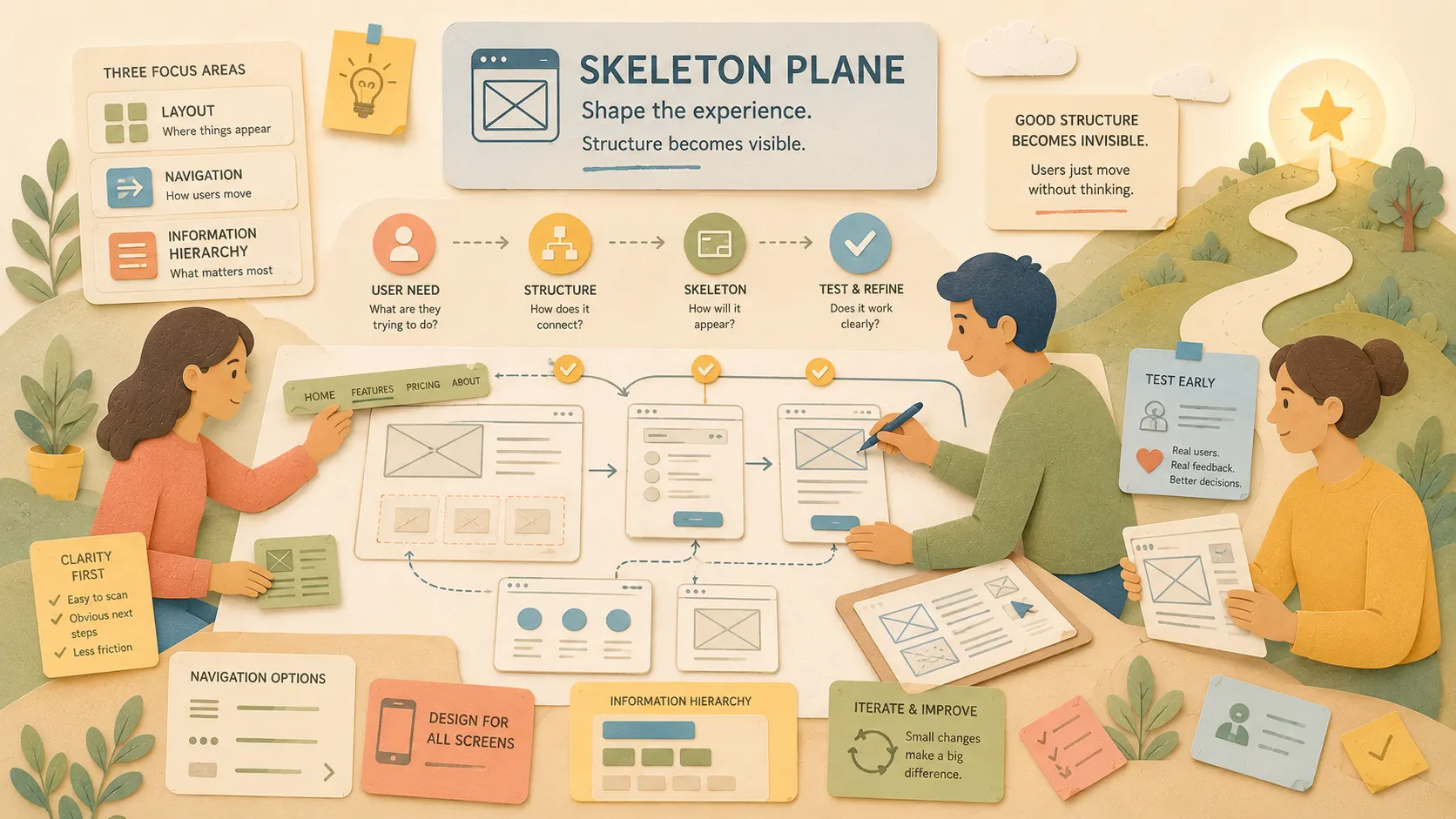
The skeleton plane focuses on three things:
- Layout
- Navigation
- Information hierarchy
This is where product designers spend a lot of time sketching low-fidelity ideas, building prototypes, and testing layout ideas. But without the layers below it, the work often misses the mark.
The skeleton plane is where structure becomes concrete.
— Jesse James Garrett
I’ve seen teams jump straight into low-fidelity sketches without a clear strategy, scope, or structure. The result? Beautiful mockups that solve the wrong problem. The skeleton plane doesn’t work in isolation. It brings the lower planes to life and prepares the upper one for visual design.
When you get this layer right, users don’t think about it. They just move through the experience. When you get it wrong, they get lost, distracted, or stuck.
In this article, we’ll walk through what the skeleton plane is, how to work in it, and how it helps teams create more usable, focused experiences.
What the skeleton plane is.
The skeleton plane takes the structure you’ve already mapped — and gives it form on the screen.
This is where interaction starts to feel real. Users can now see where to click, how to move, and what to focus on. But you’re still not designing the final visuals. That comes later. Right now, your job is to create a blueprint that supports clarity, flow, and usability.
Jesse James Garrett breaks this plane into three components:
- Interface design — What elements people interact with and where they appear
- Navigation design — How users move from place to place
- Information design — How content is structured and prioritized to support meaning
The disciplines of interaction design and visual design are very different. To have a product that is both usable and appealing, you need both skills on your team.
— Marty Cagan, Inspired
Each part plays a different role, but they work together to help users do three things:
- Know what’s possible
- Know where they are
- Know what to do next
This is the layer that defines placement, spacing, groupings, and visibility. It’s also where the smallest choices — like button order or field alignment — can have outsized effects.
The choices made in interface, navigation, and information design help users accomplish their tasks and understand where they are and what they can do.
— Jesse James Garrett, The Elements of User Experience
The skeleton plane translates structure into interaction. It shapes the space before any styling enters the picture.
How to work in the skeleton layer.
This is where your design decisions start affecting the real world.
You’re now working with actual page and screen layouts. You’re deciding what shows up first, what’s clickable, and how users move through each view. These aren’t final designs, but they’re close enough to test.
Here’s how to work well in the skeleton plane:
1. Design for behavior, not decoration
Start with what the user is trying to do. Your layout should reflect the flow you mapped earlier. Don’t just arrange elements for visual balance. Use layout to guide movement.
You’re not decorating boxes. You’re building paths.
Example:
❌ A checkout page looked modern, centered layout, full-bleed images, and floating buttons.
✅ But users missed the “Place Order” button because it was far from the payment fields.
🔁 We moved it to the bottom right, after the form. Conversions went back up.
2. Focus on clarity
Group related elements. Show visual hierarchy through spacing and alignment. Help users decide quickly with defaults and obvious next steps.
If it’s important, make it obvious.
Example:
❌ Five onboarding steps were stacked with no clear grouping. Users thought the screen was broken.
✅ We added numbers, grouped them with a space, and labeled each step.
Completion rates jumped.
This guide to visual hierarchy from NN/g gives great examples of how layout choices shape user behavior.
3. Test early and often
You don’t need a polished UI to test the structure. Clickable wireframes and quick sketches are enough to learn fast.
We learn faster by testing sets of ideas and running smaller simulations.
— Teresa Torres, Continuous Discovery Habits
Example:
We tested a nav layout using a simple wireframe.
❌ One label confused everyone.
✅ We changed it and retested — no visual polish needed.
Clarity went up without extra rework.
Artifacts, hard skills, and soft skills
The skeleton plane is where layout, navigation, and hierarchy take shape. To work well in this layer, your team needs to make decisions visible, testable, and grounded in real user needs.
Artifacts
- Clickable low-fidelity prototypes
- Layout sketches (paper or digital)
- UI inventory or component draft
- Navigation map or menu model
- Content priority matrix
- Responsive layout diagrams
Hard skills
- Interface and interaction design
- Navigation systems and behavior
- Information hierarchy and content grouping
- Prototyping tools (Figma, UXPin, Framer, etc.)
- Accessibility design
- Usability testing
- Responsive layout techniques
Soft skills
- Communicating design intent
- Giving and receiving layout feedback
- Balancing opinions with evidence
- Naming and labeling clearly
- Managing visual noise
- Knowing when to pause or simplify
Artifacts, hard skills, and soft skills
Structure is where ideas start to take form. It’s also where teams start to diverge if the work isn’t visible.
Artifacts
Make the structure visible so your team can align and test early.
- Task flows
- Site maps
- Journey maps
- IA diagrams
- Tree tests
Hard skills
Build a structure that matches how people think.
- Information architecture
- Interaction design
- Flow modeling
- Tool proficiency: FigJam, Whimsical, Lucidchart
Information Architecture Basics — A great primer from Nielsen Norman Group.
Soft skills
Keep the structure grounded in user needs and collaboration.
- Empathy
- Logic
- Facilitation
- Listening for confusion
Real world example
We also referenced this article on navigation design patterns from the Baymard Institute to guide menu structure and interaction patterns.
We’d already tested the information architecture. We knew how users looked for content and what keywords made sense to them. Now it was time to turn that structure into something people could actually use on both desktop and mobile.
This was deep Skeleton Plane work.
We focused on two things:
- User interface design — What elements go where
- Information design — How content is grouped, revealed, and labeled
We started with low-fidelity mockups to test whether our IA work held up. We looked at different navigation patterns, tabbed menus, hamburger menus, dropdowns, flyouts, and chevrons. Some opened on click, others on hover. Some were full-width. Others were compact.
We also accounted for mobile behavior. Most of our users were right-handed, so we tested thumb positioning and tap accuracy. We ran usability tests across both platforms, made small layout adjustments based on feedback, and tested again.
After a few rounds, users were finding what they needed quickly. Confidence was high. As a final check, we ran one more tree test to validate the hierarchy, and it passed with strong results.
We weren’t polishing UI yet. That would come in the Surface Plane. But we now had a functional, validated layout grounded in behavior. The skeleton was solid.
How it connects to the other planes
The skeleton plane sits between structure and surface. It’s where your strategy and architecture start to take visible form, and where weak decisions below it start to show.
If the structure is unclear, your wireframes will feel clunky. If the scope is bloated, your layouts will get crowded. If the strategy is fuzzy, your hierarchy will be off. It all trickles up.
The decisions made on the structure plane are informed by the scope and directly influence the skeleton and surface planes.
— Jesse James Garrett, The Elements of User Experience
The skeleton connects the why (strategy), the what (scope), and the how (structure) to the what users actually see and interact with (surface). It’s the working draft of the final experience.
Strong skeleton work makes the surface design faster and cleaner. It sets boundaries for visual styling. It reveals which interactions need refinement. And it helps the team test usability before they commit to final visuals.
Design clarity is the foundation of usability. If the user can’t figure out how to use it, the rest doesn’t matter.
— Marty Cagan, Inspired
In Conclusion
The skeleton plane is where your product starts to take shape without the polish. It’s where layout, navigation, and information hierarchy work together to help users move with confidence.
When teams skip this layer, they end up fixing usability issues late in the process after the design is locked and the build has started. But when they take time here, they build clarity early. They ship with fewer surprises and less rework.
This layer doesn’t need to be perfect. It just needs to be intentional. Ground it in user behavior, test before you polish, and use it to connect the plan to the pixels.
The best skeletons are the ones users never notice because they just work.
Take Action
Use the skeleton plane to make better decisions before you commit to visuals. Here’s how to apply it this week:
- Pull up a current sketch. Does the layout reflect how users think or how your system works?
- Sketch a low-fi version of your next feature before you open Figma. Focus on flow, not polish.
- Run a usability test on an in-progress layout. What’s clear? What’s confusing?
- Review your navigation. Is it helping users know where they are and what to do next?
- Share your wireframes with your team. Can they tell what matters most on the screen?
Clarity doesn’t come from color and typography. It starts here.
Further Reading
- Don’t Make Me Think by Steve Krug — A usability classic that shows how to design with clarity and reduce cognitive load for users.
- The Elements of User Experience by Jesse James Garrett — The foundation for this entire series, with detailed breakdowns of interface, navigation, and information design in this layer.
- Continuous Discovery Habits by Teresa Torres — A practical guide to building the right thing by testing early and learning through fast feedback loops.
- Inspired by Marty Cagan — Insight into why both interaction design and visual design are required to create great user experiences.